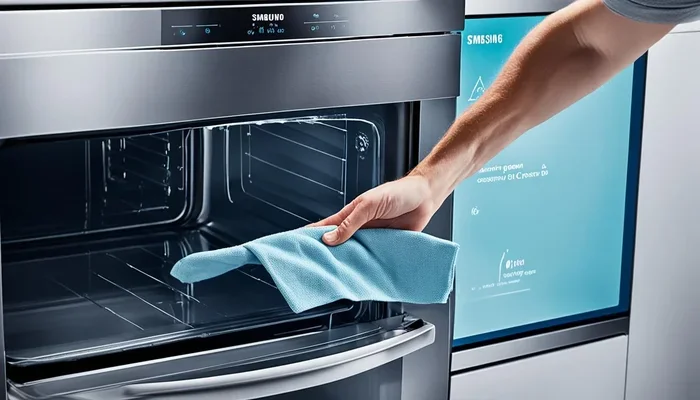
How To Turn Off Self Cleaning Oven Samsung Right Now
If your Samsung oven’s self-clean cycle is running too long or you need to stop it, learning how to turn off self cleaning oven Samsung is simple and safe. This guide walks you through the exact steps to cancel the cycle, unlock the door, and avoid damage. You’ll also discover common mistakes and expert tips to keep your oven running smoothly.
You hear a loud fan humming and smell something burning. You glance at the oven and realize the self-clean cycle is still running. Maybe you started it by accident, or you need to use the oven right now. Whatever the reason, you need to know exactly how to turn off self cleaning oven Samsung right away.
This guide gives you clear, step-by-step instructions that work for most Samsung ovens. We’ll cover the control panel, the SmartThings app, and what to do if the door is locked. You’ll also learn common mistakes to avoid and expert tips to keep your oven in top shape. By the end, you’ll feel confident handling any self-clean situation.
Safety always comes first. Samsung ovens have built-in locks and cooling fans for a reason. Following the right steps protects you and your appliance. Let’s dive in and get your oven back to normal.
Key Takeaways
- Press the Cancel or Off button on the control panel to immediately stop the self-clean cycle.
- Use the Samsung SmartThings app to remotely turn off the self-clean mode if your oven is connected.
- Wait for the oven to cool down before opening the door, as the lock will remain engaged until it’s safe.
- Don’t force the door open – the lock is a safety feature that prevents burns and steam injuries.
- Check for error codes on the display if the oven won’t turn off; a reset may be needed.
- Prevent future issues by cleaning spills promptly and only using self-clean for heavy grease buildup.
📑 Table of Contents
- Step-by-Step: How To Turn Off Self Cleaning Oven Samsung
- Why You Might Need to Stop the Self-Clean Cycle Early
- What to Do When the Oven Door Won’t Unlock
- Samsung Oven Self-Clean: Model-Specific Tips
- Common Mistakes to Avoid When Stopping Self-Clean
- How to Prevent Future Self-Clean Emergencies
- Conclusion
Step-by-Step: How To Turn Off Self Cleaning Oven Samsung
Stopping the self-clean cycle is usually quick. The exact steps depend slightly on your model, but the basic process is the same. Here’s what to do right now.
Locate the Self-Clean Button or Control Panel
Look at the front of your oven. The control panel is either on the top or the front, depending on the model. You’ll see a button labeled Self-Clean, Clean, or a symbol that looks like a spark. On some newer Samsung models, the controls are hidden behind a smooth panel with touch-sensitive icons. If you’re not sure, look for a button with a flame or a cleaning icon.
Take a deep breath. You don’t need to rush. Just find the control area and move to the next step.
Press the Cancel or Off Button
Once you’ve found the self-clean button, press the Cancel or Off button. On most Samsung ovens, holding the Cancel button for 3 to 5 seconds will stop the cycle. The display will change, and the fan should slow down within a minute.
If pressing Cancel doesn’t work, try pressing the Off button. Some models require you to press and hold both the Start and Cancel buttons together for 5 seconds. This forces the oven to exit the self-clean mode.
Use the Samsung SmartThings App (If Your Oven Is Connected)
Many modern Samsung ovens connect to Wi-Fi. If you have the SmartThings app on your phone, you can turn off the self-clean cycle remotely.
- Open the SmartThings app.
- Select your Samsung oven from the device list.
- Tap Self-Clean or Cleaning Mode.
- Choose Cancel or Turn Off.
This method is perfect if you’re across the room or even away from home. The oven will stop the cycle and begin its cool-down phase.
Quick Tips for Immediate Action
- Don’t unplug the oven. Cutting power suddenly can damage the control board and lock the door permanently.
- Keep the kitchen ventilated. Open a window or turn on the range hood. Self-clean cycles produce smoke and odors.
- Listen for the click. When the lock releases, you’ll hear a soft click. That means it’s safe to open the door.
Common Mistakes When Trying to Stop Self-Clean
People often make mistakes when they panic. Here’s what to avoid:
- Forcing the door open. The lock is designed to stay engaged until the oven cools below 300°F. Forcing it can break the latch.
- Spraying water inside. Water and hot surfaces don’t mix. This can cause steam burns or damage the electronics.
- Ignoring error codes. If the display shows a code like F1 or SE, it means the oven needs a reset. Forcing it will make things worse.
Expert Insight: Why You Should Never Force the Door Open
Samsung ovens use a door lock mechanism that engages during the pyrolytic cleaning process. This is a high-heat cycle that turns food residue into ash. The lock prevents you from opening the door while the interior is extremely hot. Even after you cancel the cycle, the lock stays engaged until the oven reaches a safe temperature. This is a safety feature, not a malfunction. Trust the process and wait for the click.
Why You Might Need to Stop the Self-Clean Cycle Early
Self-clean cycles run for 2 to 4 hours. Sometimes you need to stop them before they finish. Here are the most common reasons.
When Self-Clean Goes Wrong
You might notice heavy smoke or a burning smell that doesn’t go away. This can happen if there’s too much grease inside the oven. The self-clean vent may become blocked, causing smoke to fill the kitchen. In this case, you need to stop the cycle immediately and ventilate the room.
Another reason is that you simply forgot you started it. Maybe you pressed the button by accident while wiping the control panel. Now you need the oven for dinner, and the self-clean cycle is running. Knowing how to turn it off quickly saves you time and stress.
How the Oven Protects Itself
During pyrolytic cleaning, the oven heats up to about 900°F. This extreme temperature burns off food spills and grease. The oven interior temperature is monitored by a sensor. If the temperature gets too high, the oven will automatically shut off. But you don’t need to wait for that. You can stop it yourself using the steps above.
What to Do When the Oven Door Won’t Unlock
Even after you cancel the self-clean cycle, the door might stay locked for 30 minutes to an hour. This is completely normal. The cooling fan needs to bring the interior temperature down below 300°F before the lock releases. Here’s what to do during this waiting period.
Let the Oven Cool Completely
Do not try to open the door. Just let the oven sit. You’ll hear the fan running inside. This is the cooling fan doing its job. Once the temperature drops, the lock will disengage with a soft click.
Check for Error Codes on the Display
If the door stays locked for more than 90 minutes, check the display. A flashing error code means something is wrong. Common codes include:
- F1: Control board error. Try resetting the oven by turning it off at the circuit breaker for 5 minutes.
- SE: Sensor error. The temperature sensor may be faulty. Unplug the oven and plug it back in.
- PF: Power failure. The oven lost power during the cycle. Turn it off and on again to reset.
Reset the Control Panel
A simple reset often fixes a stuck lock. Here’s how:
- Turn the oven off using the main power switch or the control panel.
- Unplug the oven from the wall outlet.
- Wait for 5 full minutes.
- Plug the oven back in.
- Turn the oven on. The lock should release.
If the lock still won’t release after a reset, contact Samsung support. Forcing the door open can cause expensive damage.
Samsung Oven Self-Clean: Model-Specific Tips
Samsung makes many oven models, and the self-clean controls vary slightly. Here’s a quick comparison of popular models and how to stop the self-clean cycle on each.
| Samsung Model | Self-Clean Button Location | How to Turn Off |
|---|---|---|
| Samsung NE58J7850SS | Control panel, top of oven door | Press and hold Cancel for 5 seconds |
| Samsung NV52J5050SS | Touch controls behind the door panel | Use SmartThings app or press Off |
| Samsung JT/BH Series | Dial and button interface | Turn dial to Off, then press Start |
| Samsung RF28R7351SR | Fingerprint-resistant panel | Tap Self-Clean icon, then tap Cancel |
Expert Insights: Differences Across Models
Newer Samsung ovens with SmartThings connectivity offer the most flexibility. You can pause or cancel the cycle from your phone. Older models with mechanical dials require a manual reset. If you own a vintage Samsung oven, the self-clean button might be a simple toggle switch. Turn it to the off position and the cycle stops. Always refer to your specific model’s manual for the exact button layout.
Common Mistakes to Avoid When Stopping Self-Clean
Even with the best intentions, people make errors that can damage their oven. Here are the most common mistakes and how to avoid them.
Quick Tips to Prevent Damage
- Never use water on a hot oven. The sudden temperature change can crack the interior enamel or shatter the glass door.
- Don’t ignore the lock. The lock is there for your safety. It prevents burns from superheated air and steam.
- Avoid opening the vent during cleaning. The self-clean vent releases smoke and odors. Opening it mid-cycle can let smoke into your kitchen.
- Don’t start self-clean right after cooking. Let the oven cool down first. A hot oven with food residue can create excessive smoke.
When You Accidentally Start Self-Clean
It happens to the best of us. You wipe the control panel and press the self-clean button by mistake. Now you have to wait hours for a cycle you didn’t want. The good news is that you can stop it immediately using the Cancel button. The oven will begin its cool-down phase and the door will unlock once it’s safe. You won’t damage the oven by stopping the cycle early.
How to Prevent Future Self-Clean Emergencies
The best way to avoid needing to turn off the self-clean cycle is to use it wisely. Here’s how to keep your Samsung oven clean without emergencies.
When to Use Self-Clean vs. Manual Cleaning
Pyrolytic cleaning is great for heavy grease and baked-on food. But you don’t need to use it every week. Reserve self-clean for deep cleaning once a month or when you’ve had a big spill. For everyday spills, wipe them down with a damp cloth after the oven cools. This prevents buildup and reduces the need for long self-clean cycles.
Regular Maintenance Tips
- Wipe the oven interior with a mild cleaner after each use.
- Clean the self-clean vent regularly to prevent blockages.
- Check the door seal for cracks. A damaged seal can let heat escape during the cycle.
- Use the control lock feature to prevent accidental button presses.
Taking these small steps keeps your oven running smoothly and reduces the chances of needing an emergency stop.
Conclusion
Knowing how to turn off self cleaning oven Samsung is a simple skill that every owner should have. Whether you need to stop the cycle because of smoke, a mistake, or urgency, the process is straightforward. Use the Cancel or Off button, try the SmartThings app if your model supports it, and always let the oven cool before opening the door. Avoid common mistakes like forcing the door or using water. With the right approach, you’ll handle any self-clean situation with confidence. Keep this guide handy, and your Samsung oven will serve you well for years to come.
Frequently Asked Questions
Can I turn off the self-clean cycle in the middle of the process?
Yes, you can. Just press the Cancel or Off button on the control panel. The oven will stop heating and begin its cool-down phase. The door will remain locked until the interior temperature drops to a safe level.
Why is my Samsung oven door locked after I turn off self-clean?
The door lock is a safety feature. It stays engaged until the oven interior cools below 300°F. This prevents burns and steam injuries. The lock will release automatically once the oven has cooled sufficiently.
Will stopping the self-clean cycle damage my Samsung oven?
No, stopping the cycle early will not damage your oven. Samsung ovens are designed to handle interruptions. Just avoid forcing the door or using water on the hot interior.
How do I reset my Samsung oven after stopping self-clean?
Turn the oven off, unplug it for 5 minutes, then plug it back in. This resets the control board and usually clears any error codes. If the lock is still stuck, the reset often releases it.
Can I use the Samsung SmartThings app to stop self-clean on any model?
Only Wi-Fi-enabled Samsung ovens support the SmartThings app. Check your model number and look for the SmartThings logo on the control panel or in your manual. Older models without Wi-Fi must be controlled directly on the oven.
What should I do if the oven won’t turn off and the door is locked?
First, try pressing and holding the Cancel button for 10 seconds. If that doesn’t work, turn the oven off at the circuit breaker for 5 minutes, then turn it back on. If the lock still won’t release, contact Samsung customer support for assistance.